
Setting up a Data eSIM on Your iPhone has become one of the easiest ways to enjoy reliable internet while travelling or when you need instant connectivity without inserting a physical SIM card. The process is fast, secure, and supported on most modern iPhones.
With a Data eSIM on Your iPhone, you can stay online for maps, browsing, social media, streaming, and messaging apps that use the internet. Nexar provides affordable and easy to activate plans that work smoothly on supported devices.
This guide walks you through everything you need to know about using a Data eSIM on Your iPhone, how to activate eSIM on iPhone, and how to install a data eSIM for iPhone manually or with a QR code.
How a Data eSIM Works on Your iPhone
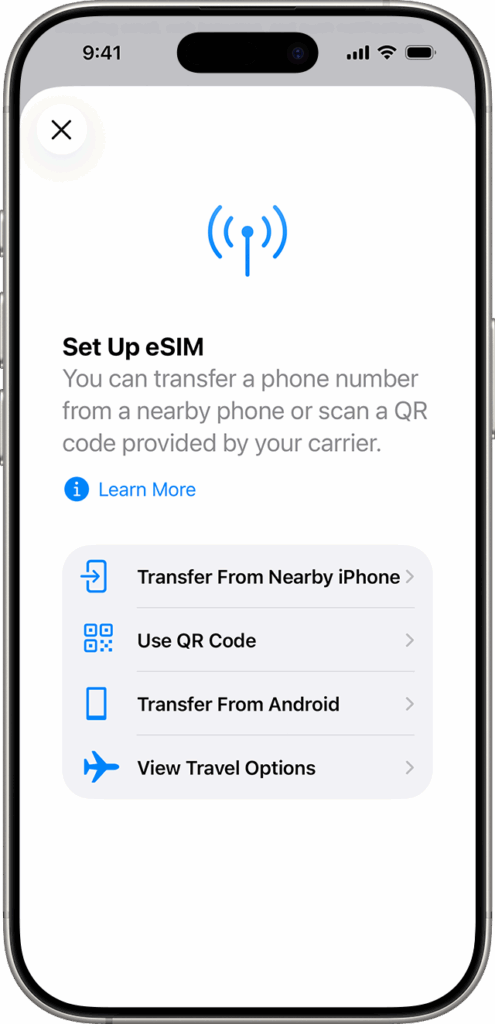
A Data eSIM on Your iPhone is a digital SIM built into your device. It removes the need for a physical SIM card and allows your phone to store multiple eSIM profiles. This makes it extremely useful for travel because you can switch between plans anytime. A Data eSIM on Your iPhone gives you internet only. It does not support traditional sms or voice calls. For calls and messages, use apps like WhatsApp, FaceTime or Skype.
This makes the data eSIM for iPhone perfect for travellers who only need high speed internet without roaming charges.
Requirements Before You Activate eSIM on iPhone
- Before downloading or activating your Data eSIM on Your iPhone, make sure you have the following:
- An iPhone XS, iPhone XS Max, iPhone XR or later
- An unlocked device
- A stable WiFi or hotspot connection
- A strong VPN when using Nexar eSIM outside the supported country
- A reliable data eSIM for iPhone plan such as Nexar eSIM
You can also learn more about Apple’s requirements here
How to Purchase a Data eSIM for iPhone from Nexar
Before we get started on setting up your eSIM, it’s good to know that Nexar sells affordable data eSIM plans for travellers and everyday users. You can buy and activate your plan instantly, without waiting for physical delivery or long verification steps. Here’s how to purchase one from Nexar:
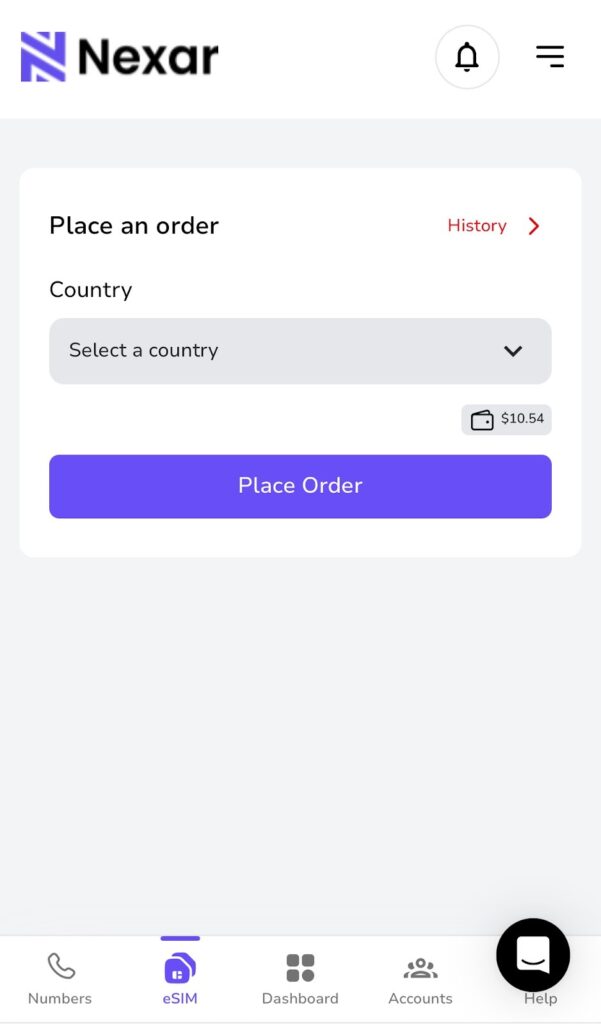
- Sign up by clicking this link.
- Select the country you are travelling to
- Choose your preferred data plan
- Tap Place Order
Remember that the Data eSIM on Your iPhone will only work when you are physically inside the selected country.
How to Activate Your Data eSIM on Your iPhone
There are several ways to activate eSIM on iPhone. Different methods work depending on your carrier, device model and region. Below are the supported activation methods following Apple’s setup style.
1. Activate eSIM on iPhone using Quick Transfer
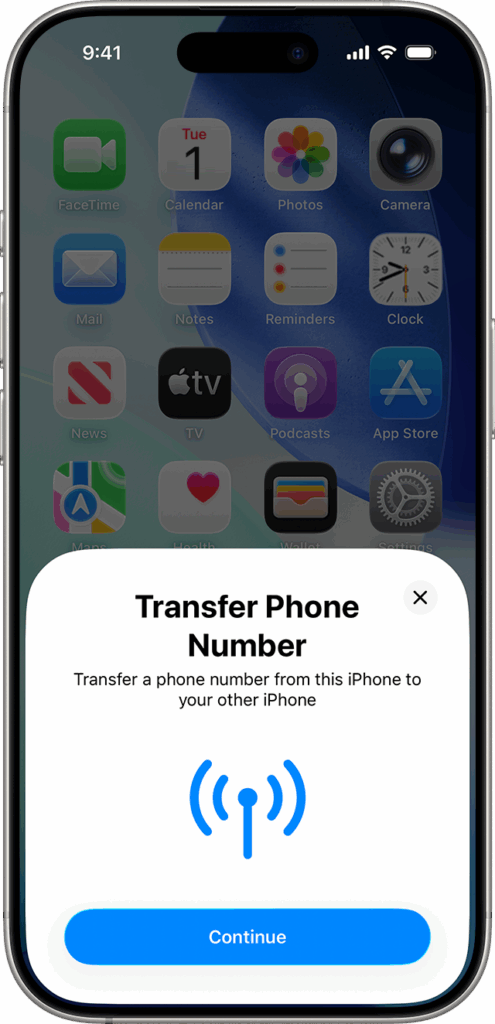
If you are moving a line from your old iPhone to a new one, you can use Quick Transfer.
- Make sure both phones are signed in with the same Apple ID
- Keep Bluetooth on
- Place both phones close
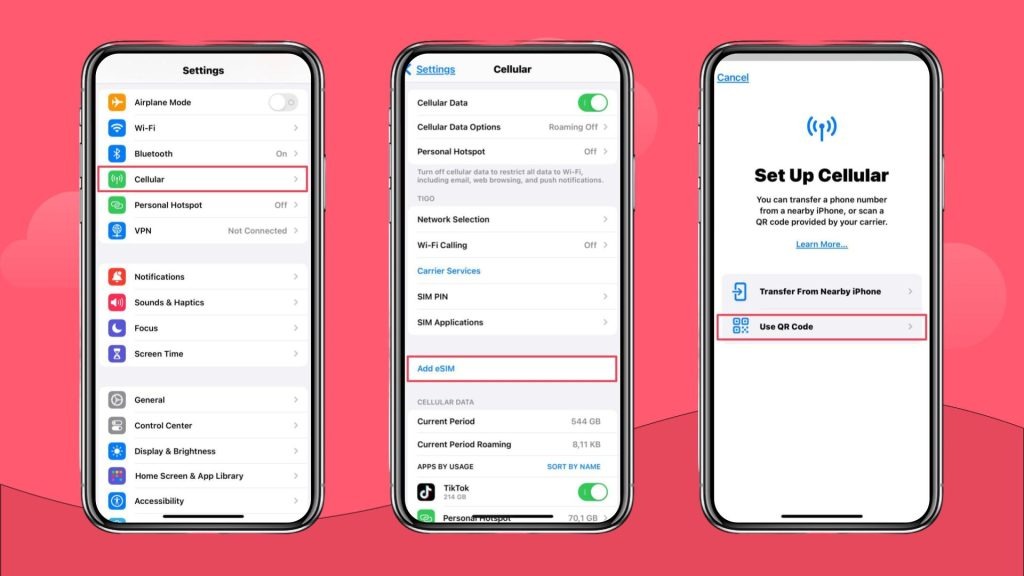
- Go to Settings, tap Cellular, then tap Add eSIM
- Choose a number to transfer
- Follow the instructions on the old iPhone
- Wait for activation
This method is great for personal numbers but not necessary for a travel eSIM.
2. Activate eSIM on iPhone using QR Code
If your provider gives you a QR code, follow these steps.
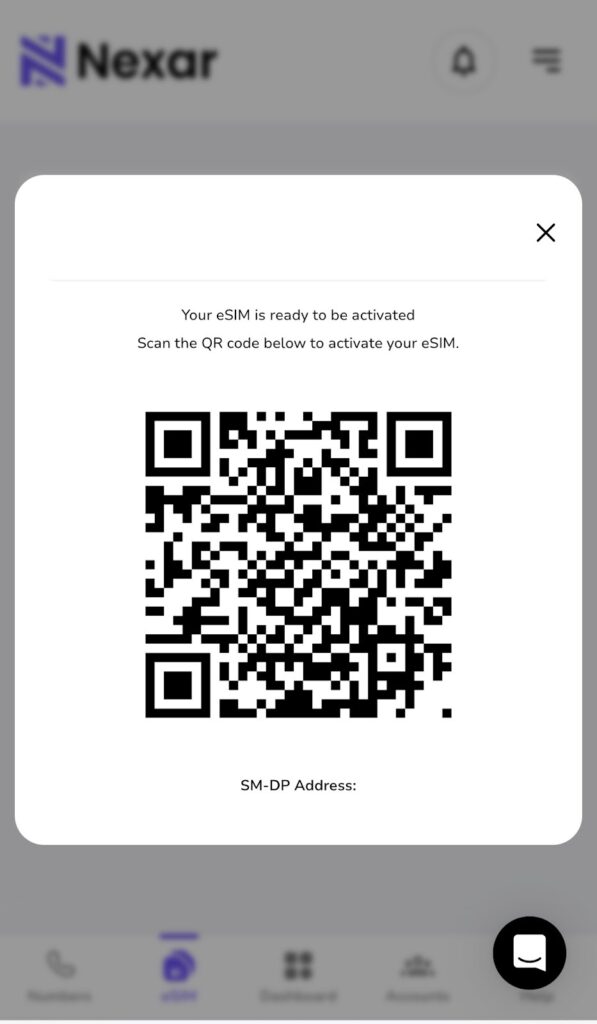
- Open Settings
- Tap Cellular or Mobile Data
- Tap Add Cellular Plan
- Scan the QR code
- If asked, enter the confirmation code
- Choose a label for your plan
- Select the plan as data only
Your Data eSIM on Your iPhone should appear under Cellular Plans.
How to Manually Install a Data eSIM for iPhone
Sometimes, your provider lets you enter the eSIM details manually. Here’s how to do it.
- Open Settings
- Tap Cellular
- Tap Add Cellular Plan
- Tap Enter Details Manually
- Enter the SM DP Plus Address
- Enter the activation code
- Enter the confirmation code if required
- Choose a label
- Select it as data only
This is the method most travel eSIM users prefer.
How to Connect to Mobile Data After Installation
After installing your Data eSIM on Your iPhone, turn it on and connect to mobile data.
- Go to Settings
- Tap Cellular
- Select your new eSIM plan
- Turn on Data Roaming
- Tap Cellular Data Network and input APN if required
- Return to Cellular
- Select your eSIM for cellular data
- Turn OFF Allow Cellular Data Switching
Your data eSIM for iPhone should now connect to a supported network.
If you prefer visual instructions, watch this short video guide.
How to Confirm Your eSIM is Working
- Go to Settings
- Tap Cellular
- Look for your new data plan
- It must show connected or activated
- If you see signal bars beside the eSIM label, it is active.
Important Notes When Using Nexar eSIM
Follow the steps exactly as shown to avoid installation issues.
- Always use a strong VPN
- Nexar eSIM is data only
- Use WhatsApp, FaceTime, Messenger or Skype for calls and texts
- Your eSIM will only work in the purchased country
- Install the Data eSIM on Your iPhone using your browser and settings app
Travelling soon? Buy a Nexar eSIM.
A Data eSIM on Your iPhone is perfect for travellers because it prevents roaming charges. Once you land in your destination, your eSIM immediately connects so you can use maps, ride hailing apps, banking apps, translation tools, and social media. If you use an android device, you can also install an eSIM on your device after reading this guide.
Final Thoughts
Setting up a Data eSIM on Your iPhone is simple when you follow clear steps. You can activate eSIM on iPhone using QR code, manual setup, or carrier activation. Nexar provides a reliable data eSIM for iPhone that works for travel and everyday use. With the right VPN, a stable WiFi connection, and the correct installation steps, you can enjoy fast and secure data anywhere your plan supports.
If you need reliable travel data, purchase your eSIM from Nexar and follow the instructions in this guide for a smooth setup.