
Imagine you’re going for a run, leaving your iPhone at home, but you still want to receive calls, messages, and notifications on your Apple Watch. You open the settings expecting to activate cellular service, only to discover that your watch needs a compatible plan.
If this sounds familiar, you’re not alone. Setting up an eSIM for Apple Watch involves more than scanning a QR code or buying a data plan. You need a compatible watch, the right iPhone, and a carrier that supports Apple Watch cellular service.
This guide explains how to set up your watch, troubleshoot common problems, and understand where Nexar’s eSIM services may fit into your connectivity needs.
What Is an eSIM for Apple Watch?

An eSIM is a digital SIM embedded in a device. It lets compatible devices connect to a mobile network without inserting a physical SIM card.
An eSIM for Apple Watch allows a supported GPS + Cellular Apple Watch to connect to a compatible mobile network when it isn’t connected to your iPhone or Wi-Fi.
However, not every Apple Watch supports cellular connectivity. GPS-only models cannot activate an independent cellular plan.
It’s also important to distinguish a smartwatch cellular plan from a regular travel eSIM. A travel eSIM may provide mobile data in another country, but it does not automatically activate Apple Watch cellular service.
What You Need Before Apple Watch Cellular Setup
Before beginning your Apple Watch cellular setup, check these requirements:
- A compatible watch: You need a GPS + Cellular model, not a GPS-only version.
- A compatible iPhone: Pair your Apple Watch with an iPhone and keep both devices updated.
- A supported carrier: Your carrier must offer Apple Watch cellular plans for your specific watch model and region.
- An eligible mobile plan: Some prepaid and older plans may not qualify.
- Network access: You may need to be within your carrier’s coverage area during activation.
Apple also notes that your iPhone and Apple Watch generally need to use the same carrier, except in certain Family Setup arrangements. Check the official Apple Watch cellular requirements before purchasing a plan.
How to Set Up an eSIM for Apple Watch
Once you have confirmed compatibility, follow these steps to activate cellular service.
Step 1: Pair Your Apple Watch With Your iPhone
Turn on your Apple Watch and bring it close to your iPhone. Follow the instructions displayed on your devices to complete pairing.
If you have already paired your watch, make sure both devices are running compatible, up-to-date software.
Step 2: Open the Apple Watch App
On your iPhone, open the Apple Watch app and select the My Watch tab.
Tap Cellular to view the available cellular options. If you are setting up a new watch, you may also see an option to configure cellular during the initial setup process.
Step 3: Choose Set Up Cellular
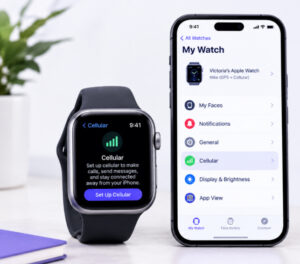
Tap Set Up Cellular and follow the instructions on your screen.
Your carrier may ask you to sign in, confirm your mobile account, select an eligible plan, or accept additional terms. The exact process depends on the carrier.
This is the key step in Apple Watch eSIM activation. You cannot complete it through a generic QR code if your carrier requires a specific wearable plan.
Step 4: Complete Activation and Check the Connection

Wait for the carrier activation process to finish. Once it is active, open Control Center on your Apple Watch to check the cellular signal.
To test the connection, move away from your iPhone and a familiar Wi-Fi network, then try a feature that requires cellular connectivity.
For additional instructions, visit Apple’s official cellular setup guide.
Can You Use a Nexar eSIM for Apple Watch?
Nexar offers eSIM options for travellers and users who need mobile data while abroad. However, a data-only travel eSIM is not automatically compatible with Apple Watch cellular activation.
If your goal is to use maps, internet-based apps, or other connected services while travelling, explore the available travel eSIM plans on the Nexar website. Before purchasing, check the plan’s supported devices and activation requirements.
If you specifically want your Apple Watch to make calls or receive messages independently of your iPhone, first confirm that your mobile carrier supports Apple Watch cellular service. Do not buy a Nexar travel eSIM expecting it to replace a supported wearable plan.
Common Apple Watch eSIM Activation Problems
If your Apple Watch eSIM activation fails, try these fixes:
- You cannot see Set Up Cellular: Confirm that your watch is a GPS + Cellular model and that your carrier supports the feature.
- Your carrier rejects the plan: Contact the carrier to check your account eligibility and wearable-plan availability.
- Activation keeps loading: Update both devices, restart them, and try again.
- Your watch has no signal: Check cellular coverage and whether the plan has finished activating.
- You bought a travel eSIM: Confirm that it supports your intended device and use case. A phone data plan will not necessarily activate a smartwatch.
If these steps do not help, contact your carrier before purchasing another plan.
Frequently Asked Questions

Can I set up an eSIM for Apple Watch without an iPhone?
For standard setup, you need a compatible iPhone. Apple’s Family Setup option allows certain cellular Apple Watches to be configured for a family member, subject to carrier and regional support.
Does every Apple Watch support eSIM?
No. You need a GPS + Cellular model. A GPS-only Apple Watch cannot independently connect to a mobile network using an eSIM.
Can I use my iPhone’s eSIM on my Apple Watch?
Your iPhone’s eSIM does not automatically activate your watch. Your carrier must support an eligible Apple Watch plan, which is usually managed through the Apple Watch app.
Can I use an Apple Watch cellular plan in Nigeria?
Check Apple’s official carrier availability list and confirm directly with your carrier. Availability depends on the country, carrier, watch model, and plan.
Final Thoughts
Setting up an eSIM for Apple Watch is straightforward once you have the right device and carrier plan. Pair your watch, open the Apple Watch app, select Cellular, and follow your carrier’s activation instructions.
For Nigerians who also need mobile data while travelling, Nexar offers eSIM options worth exploring. Just confirm device compatibility and remember that a travel eSIM and an Apple Watch cellular plan serve different purposes.
Ready to explore eSIM options for your next trip? Visit Nexar to review available plans and their requirements.